

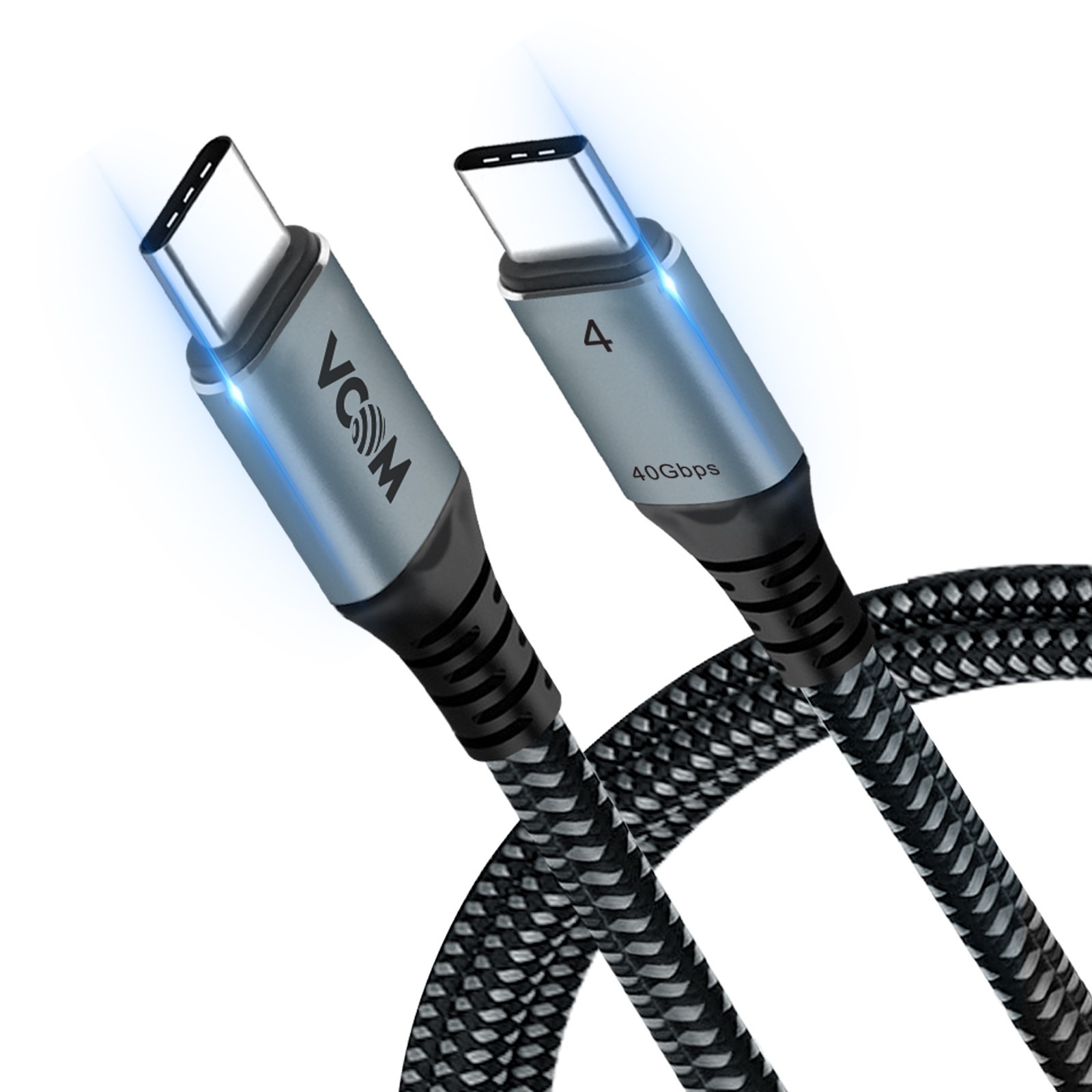
A small cable can make a $2,000 laptop feel broken. That is why USB4 Cable Confusion keeps showing up for Americans who buy a new Windows laptop, MacBook, docking station, external SSD, or 4K monitor and expect every USB-C cord to act the same. The connector may fit, but the cable may not carry the speed, charging power, or display signal you need. Readers who follow practical technology coverage already know the trap: the modern port looks simple, yet the label behind it is doing the real work. USB-IF says USB4 supports multiple data and display protocols and can reach up to 80 Gbps over certified 80 Gbps cables, which means the cable is no longer a cheap afterthought. Pick wrong, and your monitor flickers, your laptop charges slowly, or your external drive crawls. Pick right, and the whole setup feels calm.
USB4 Cable Confusion Starts With the Same Small Connector
The problem begins with the shape. USB-C looks like one clean answer, but it is only the connector. The port and cable behind that connector can carry slow data, fast data, laptop charging, DisplayPort video, Thunderbolt signals, or some mix of those. This is where shoppers get burned at Best Buy, Amazon, Walmart, and office supply stores across the U.S. The shelf may show ten cables that all fit your laptop. Only a few may do the job you came for.
Why USB-C shape does not tell the full story
USB-C is like a driveway. It tells you where the car can enter, not how fast the road goes after that. A cable sold for phone charging may fit your USB4 laptop, but it can still act like a narrow road when you connect an external SSD or dock.
That mismatch explains many “bad dock” reviews. A user plugs a thin, unmarked USB-C cable into a USB4 dock, then blames the dock when dual monitors fail. The cable may be the weak link. It may charge a phone well and still fail at high-speed data or display output.
This is the non-obvious part: a cable can be safe and still be wrong. Safety only means it should not harm your device under normal use. It does not mean it will move a huge video file fast, run a display, or charge a high-power laptop at full speed.
How cable labels create buyer mistakes
USB names have trained shoppers to look for the newest number. That habit breaks down with USB-C cables. “USB-C cable” is not a performance claim. “USB4” is better, but even USB4 can refer to different speed levels, such as 20 Gbps, 40 Gbps, or newer 80 Gbps classes. USB-IF has pushed speed-based names because version numbers caused confusion for buyers.
A typical American home office shows the mess well. You may have one cable from a phone, one from a monitor, one from a laptop charger, and one from an old external drive. They all plug in. They do not all perform the same. Worse, many have no printed rating on the cable itself.
The fix starts with ignoring the shape and reading the promise. Look for speed, power, and certification. A cable marked for 40 Gbps and 240W tells you far more than a cable called “premium USB-C.”
Speed, Power, and Video Are Separate Decisions
Once you stop trusting the connector shape, the choice becomes easier. You are not buying one feature. You are buying three: data speed, charging power, and video support. A cable can be strong in one area and weak in another. That is why a cable that charges your Dell XPS may not be the cable you want for a fast Samsung or SanDisk external SSD.
What USB4 cable speed means in daily use
USB4 cable speed matters most when you move large files or run a dock. A photographer in Austin sending hundreds of RAW files to an external drive will feel the gap faster than someone charging an iPhone at night. A 40 Gbps cable can keep a modern SSD from being held back. A low-rated cable can turn a quick transfer into a coffee break.
Speed also matters for docks because the cable is carrying more than files. It may carry keyboard input, mouse input, webcam data, Ethernet, audio, and monitor output at the same time. That shared load is where a weak cable starts to show itself.
The surprise is that many people do not need the fastest cable for every bag. A short 240W charging cable may be perfect for a laptop charger, while a certified 40 Gbps cable belongs at the desk with the dock. Buying one expensive cable for every use is not always smart. Matching the cable to the job is smarter.
Why charging wattage is a different rating
Charging has its own rules. USB Power Delivery can support up to 240W over a full-featured USB Type-C cable and connector, according to USB-IF. That does not mean every USB-C cable can handle 240W. Some are built for 60W, some for 100W, and some for 240W.
This matters for U.S. laptop buyers because bigger machines pull more power. A thin ultrabook may be fine on a lower-watt cable. A gaming laptop, workstation, or large creator laptop may complain, charge slowly, or drain while plugged in if the cable cannot carry enough power.
Here is the practical rule: speed does not equal wattage. A fast cable may not be your highest-power cable. A high-wattage cable may not be your fastest data cable. Read both numbers before you trust it with your desk setup.
Thunderbolt, Docks, and Monitors Add Another Layer
USB4 and Thunderbolt overlap, but they are not the same shopping promise. Many Thunderbolt 3 and Thunderbolt 4 devices use the USB-C connector, and many work with USB4 systems. Still, docks and monitors can expose the difference between “fits the port” and “supports the whole setup.” That is why this topic matters more at a desk than it does in a junk drawer.
How Thunderbolt compatibility affects real setups
Thunderbolt compatibility matters when you use a dock, fast storage, or multiple displays. Intel describes Thunderbolt as a high-speed data and video connection that can run accessories from one port, including chained devices in supported setups. If your laptop, dock, and cable do not agree, the setup may fall back to a lower mode.
A remote worker in Chicago might connect one cable to a laptop and expect power, Ethernet, webcam, keyboard, and two monitors. That one cable is doing the work of half a desk. If it is the cable that came with a wireless keyboard, the whole setup may act flaky.
The odd part is that a Thunderbolt cable can sometimes be the simpler buy, even for a USB4 user. Certified Thunderbolt 4 cables often support 40 Gbps and strong display behavior across many USB-C devices. They may cost more, but for a docked desk, the reduced guessing can be worth it.
Why monitors reveal cable weakness fast
Monitors are less forgiving than phone chargers. A cable that seems fine during charging may fail when asked to carry 4K video at a high refresh rate. You may see random black screens, wake-from-sleep issues, or a monitor that only works at a lower setting.
This is why home office upgrades often go sideways. Someone buys a sharp 4K display, plugs it into a laptop with a spare cable, and then spends an hour changing display settings. The monitor was not the problem. The cable was not rated for the data and display load.
A clean setup needs a cable chosen for the hardest task in the chain. If the cable must handle power, video, and data through a dock, buy for that full load. Do not buy for the easiest device on the desk.
How to Buy the Right Cable Without Overpaying
The best cable is not always the most expensive one. It is the one whose rating matches your actual use. Most U.S. buyers need two or three cable types, not a drawer full of mystery cords. Keep one high-speed cable at the desk, one high-watt charging cable in the travel bag, and maybe one basic cable for phones or small accessories.
A simple buying checklist that avoids regret
Start with the device that demands the most. If you use a dock or fast SSD, look for a cable rated for the right data speed, often 40 Gbps for many current USB4 desk setups. USB-IF notes certified logos can identify performance and power ratings, including 60W or 240W and 20 Gbps or 40 Gbps combinations.
Then check length. Short passive cables tend to be easier for high-speed use. Longer cables can work, but they may need active electronics or optical design to hold speed over distance. That is why a cheap six-foot cable can behave worse than a shorter cable from a known maker.
For your own site planning or buyer content, this is a useful place to link readers toward a home office tech setup guide or a small business hardware buying checklist. Cable choice sounds small until it breaks the whole workflow.
When a cheaper cable is fine
A cheaper cable can be fine for simple charging, phone syncing, a keyboard, or a low-demand accessory. There is no need to buy a 40 Gbps cable for a bedside charger if all it does is charge earbuds and a phone. Spend where failure costs time.
The mistake is mixing those cheaper cables into serious setups. Mark them. Use a small label, a colored tie, or a separate drawer. Keep the high-speed cable with the dock and the high-watt cable with the laptop charger.
The best habit is boring: stop treating USB-C cables as interchangeable. Once you sort them by job, cable problems drop fast. You do not need to memorize every USB name. You need to know what your cable is expected to carry.
Conclusion
The cable is now part of the computer, not an accessory you can ignore. A modern USB-C port can hide speed, charging, video, and compatibility choices behind the same tiny oval shape, so the safe move is to buy by rating instead of appearance. USB4 Cable Confusion will keep bothering shoppers because the market still looks simpler than it is. For a basic charger, a plain cable may be enough. For a dock, external SSD, high-resolution monitor, or creator laptop, the cable deserves the same attention as the device itself. Look for clear speed and wattage labels, favor certified markings when the job matters, and keep your best cables assigned to your hardest tasks. One right cable can save hours of false troubleshooting. Choose the cord before you blame the port.
Frequently Asked Questions
How do I know if my USB-C cable supports USB4?
Look for a printed or packaged speed rating such as 20 Gbps, 40 Gbps, or 80 Gbps. A plain “USB-C” label is not enough. Certified USB logos and clear wattage markings give you a safer signal than vague product titles.
Is a Thunderbolt cable better than a USB4 cable?
It depends on the setup. A certified Thunderbolt 4 cable is often a strong pick for docks, monitors, and fast storage because it usually supports 40 Gbps. A certified USB4 cable can also work well when its speed and power ratings match your devices.
Can I use any USB-C cable to charge my laptop?
No. Some USB-C cables are rated for lower power. A small laptop may charge fine, while a larger laptop may charge slowly or show a warning. Check the wattage rating on the cable and match it to your charger and computer.
Why does my USB4 dock work with one cable but not another?
The dock may need more data bandwidth, video support, or power than the second cable can carry. The connector fits, but the internal wiring and rating may differ. Use the cable that came with the dock or buy one with the correct speed rating.
Does cable length affect USB4 performance?
Yes. High-speed signals are harder to carry over longer cables. Short passive cables often perform better for desk setups. Longer high-speed cables may need active electronics or optical design, which usually raises the price.
What cable should I buy for a 4K monitor and laptop dock?
Choose a cable rated for high-speed data, such as 40 Gbps, and enough charging power for your laptop. If the dock maker recommends Thunderbolt 4 or USB4, follow that guidance. A basic charging cable is a poor choice for this setup.
Is 240W charging necessary for most people?
No. Many thin laptops need less than 100W. A 240W cable makes sense for higher-power laptops, newer chargers, and future-proof travel kits. It does not automatically mean the cable is faster for data, so check speed separately.
Why are USB cable names so confusing?
The same USB-C connector can support many different jobs. Older naming systems mixed versions, generations, and speeds, which made shopping harder. The easiest path is to ignore broad labels and buy by clear numbers: data speed, wattage, and certification.